The problem: "How do you want to open this file?"
If you have just upgraded to Windows 11, or received an Outlook .msg file for the first time, you may have hit a familiar wall: double-clicking the file does nothing useful. Instead, Windows 11 shows the "How do you want to open this file?" dialog with no sensible options.
That is expected behaviour. Windows has never included a default program for the .msg format. Unless Microsoft Outlook is installed, the operating system simply does not know what to do with the file.
Why file associations break
Even if an MSG viewer once worked on your machine, associations can reset or change because of:
- A major Windows feature update resetting default apps.
- Uninstalling an older version of Microsoft Office.
- Another application claiming the .msg extension during installation.
- A Store app being reinstalled or updated to a different package identity.
The fix is quick, and there are three ways to apply it.
Step 1: Install a viewer that handles .msg
If Outlook is not installed — and you do not want to install and license a full email client just to read a file — start with a dedicated viewer.
OpenMSG is a fast, private MSG viewer for Windows 11. It is standalone, parses files locally, renders HTML email with attachments intact, and is free for personal use.
- Open the Microsoft Store listing.
- Install OpenMSG.
- Launch it once so Windows registers the app on your system.
The download is about 15 MB and takes only a few seconds.
Step 2: Associate .msg with OpenMSG
Method 1: Right-click (fastest)
- Find any .msg file in File Explorer.
- Right-click it and choose Open with → Choose another app.
- Select OpenMSG in the list.
- Tick Always use this app to open .msg files.
- Click OK.
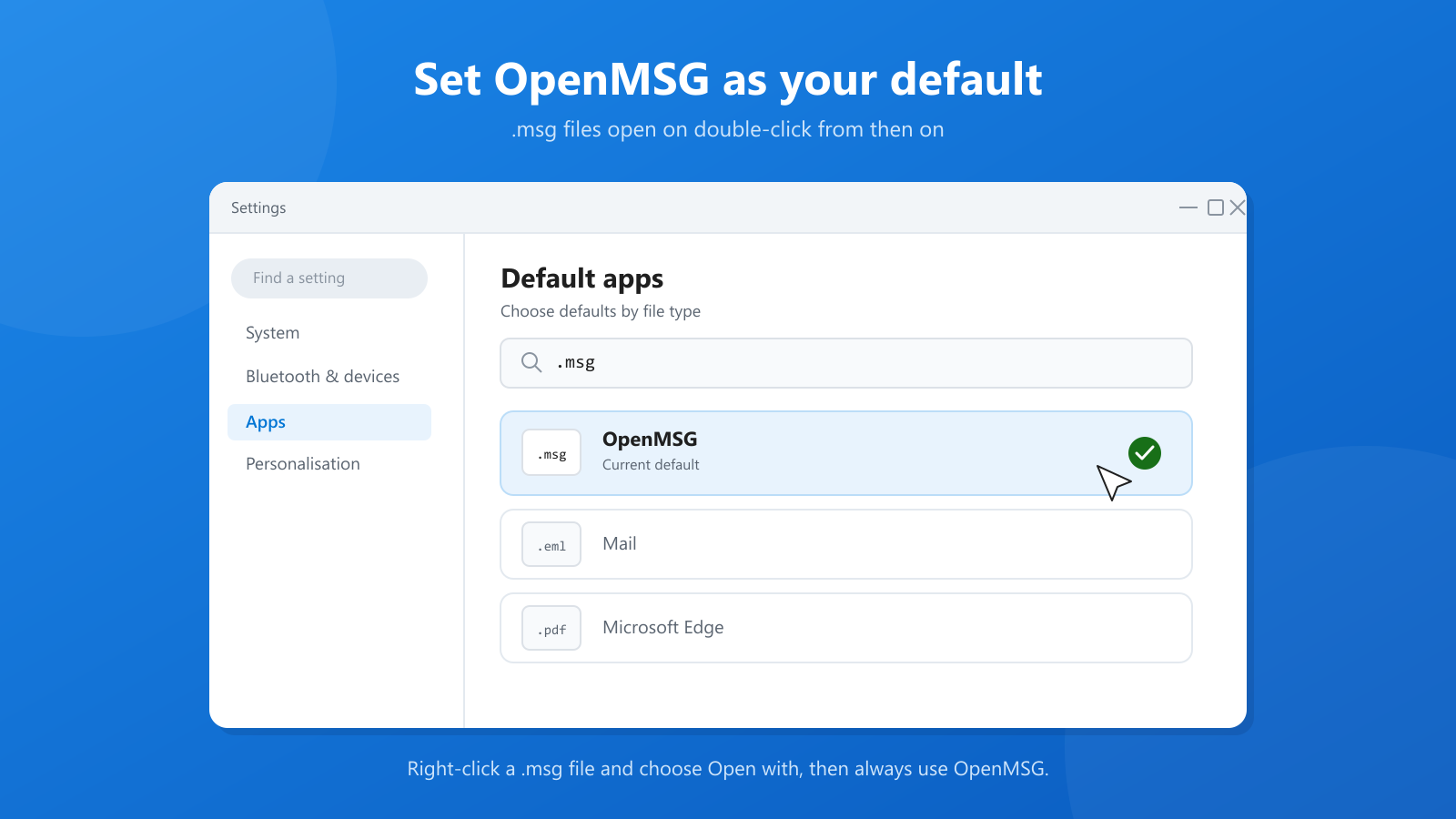
Method 2: Windows Settings
If the right-click option does not stick, set the default through Settings:
- Press Win + I to open Settings.
- Go to Apps → Default apps.
- In the search box at the top of the page, type .msg.
- Windows shows the current handler for the extension. Click it and choose OpenMSG.
Method 3: File Properties
You can also set the default directly from the file:
- Right-click the .msg file and choose Properties.
- Next to Opens with, click Change.
- Select OpenMSG, then click Set default.
Verifying the fix
With the association applied:
- The icon for .msg files in File Explorer changes to the OpenMSG icon.
- Double-clicking any MSG file opens the email immediately, showing sender, recipients, the HTML body, and the attachment panel.
If the file still opens in the wrong app, repeat the steps and double-check that you ticked Always.
Troubleshooting
OpenMSG does not appear in the "Open with" list
Launch OpenMSG once from the Start menu, close it, and try again — Store apps sometimes only register their file-handling capability after first launch. If it still does not appear, repair or reset the app in Settings → Apps → Installed apps → OpenMSG → Advanced options.
The association resets after a Windows update
This is a known Windows behaviour and not specific to OpenMSG. Re-apply the association. In managed environments, IT administrators should enforce the default through Group Policy rather than relying on per-user settings.
The dialog returns every time
Check that the file really is an MSG file. In File Explorer, open View → Show → File name extensions and confirm the file ends in .msg, not .eml or .rtf. A corrupt or truncated file can also fail to register an association; ask the sender to re-export it from Outlook.
A warning appears when I open an attachment
That is OpenMSG's security layer, not a file-association problem. Attachments outside the safe-extension list prompt before opening, and files whose contents do not match their extension are blocked. See the documentation for the full list and the Enterprise controls.
Doing this at scale (IT admins)
For fleets, do not click through Settings on every machine. The Enterprise build of OpenMSG is an MSIX package that deploys through Intune or SCCM, and the .msg association can be assigned centrally through Group Policy or a default-apps XML file. Configuration values such as attachment rules, theme, and print controls live under HKLM\SOFTWARE\Policies\OpenMSG. The documentation walks through the policy reference and a sample PowerShell script.
The bottom line
Associating .msg files with OpenMSG takes less than a minute and makes every exported email a double-click away. If it ever resets, you now know exactly where to fix it.