The hidden cost of Outlook on multi-user servers
Remote Desktop Session Hosts (RDSH), Azure Virtual Desktop (AVD) host pools, and Citrix servers let dozens or hundreds of users share a single Windows Server instance. They are a staple of enterprise, healthcare, government, and managed service environments.
When a user on one of those hosts needs to open an Outlook .msg file, the instinctive response is to install Microsoft Outlook. But on a shared multi-session server, that seemingly simple decision triggers a cascade of storage, licensing, and administrative problems.
The Outlook profile problem
Unlike a single-user desktop, a session host must maintain a separate Outlook profile for every user who signs in. Each profile generates its own local data:
- OST cache files. When Outlook connects to Microsoft 365 or Exchange Online, it creates a local cache per user. These routinely grow to 2–10 GB per user, and much larger for heavy mailboxes.
- Autocomplete and nickname caches. Recent recipients, search history, and auto-complete data are stored per profile.
- Add-in data and temp files. CRM connectors, archiving tools, and signature managers each add their own per-user stores.
The storage impact adds up quickly:
| Users on the host | Average OST size | Total storage consumed |
|---|---|---|
| 20 | 5 GB | 100 GB |
| 50 | 5 GB | 250 GB |
| 100 | 5 GB | 500 GB |
On fast NVMe or SAN-backed storage, half a terabyte of mailbox cache is a significant — and entirely avoidable — cost if users only need to read exported MSG files.
FSLogix and profile bloat
Many session host environments use FSLogix Profile Containers to manage user profiles. FSLogix mounts a per-user VHDX virtual disk containing the profile, including the Outlook OST cache.
FSLogix solves profile roaming elegantly, but it amplifies the storage issue:
- Each user's container must be large enough to hold their Outlook cache, so VHDX files are provisioned oversized.
- Containers are stored on a central file share — Azure Files, Azure NetApp Files, or an on-premises SMB share — where costs scale with every user.
- Larger containers mean longer sign-in times as the VHDX mounts, and higher IOPS demand on the storage backend during login storms.
There is also a licensing dimension. Microsoft 365 Apps for Enterprise — the version of Office licensed for multi-session hosts — is licensed per user. If a user's only requirement is to read MSG files, an Outlook licence is an expensive way to satisfy it.
The OpenMSG alternative
OpenMSG is a lightweight, standalone MSG viewer for Windows that requires no Outlook installation, no mail profile, and no cloud connectivity.
1. Zero per-user storage overhead
OpenMSG installs once per host at around 15 MB. It creates no per-user cache, no OST database, and no profile data. Ten users or two hundred, the storage footprint is the same.
2. No Outlook licensing required
Users who only need to read MSG files do not need an Outlook licence or a Microsoft 365 mailbox at all. That removes per-seat cost for helpdesk, review, and administrative staff whose job is to inspect exported emails rather than manage live mail.
3. Smaller FSLogix containers
Without multi-gigabyte OST files inside each container, VHDX size allocations can shrink. In practice that can mean lower storage bills on Azure Files or NAS, faster sign-ins as smaller containers mount, and less IOPS pressure at peak. The exact savings depend on your profile policies and usage, so treat this as an optimisation to measure rather than a guarantee.
4. No profile configuration
Outlook requires each user to have a profile — auto-configured by Autodiscover or pre-staged by policy. OpenMSG needs zero configuration. Deploy it once, associate .msg files centrally, and every user can open MSG files at their next sign-in.
5. Minimal security surface
OpenMSG is a read-only viewer for files. There is no mailbox connection, no OAuth token to manage, no credential cache, and no risk of a shared server quietly synchronising mail to the cloud. By default, parsing runs in an isolated AppContainer, HTML is sanitised, and external content is blocked.
6. Zero telemetry in the Enterprise build
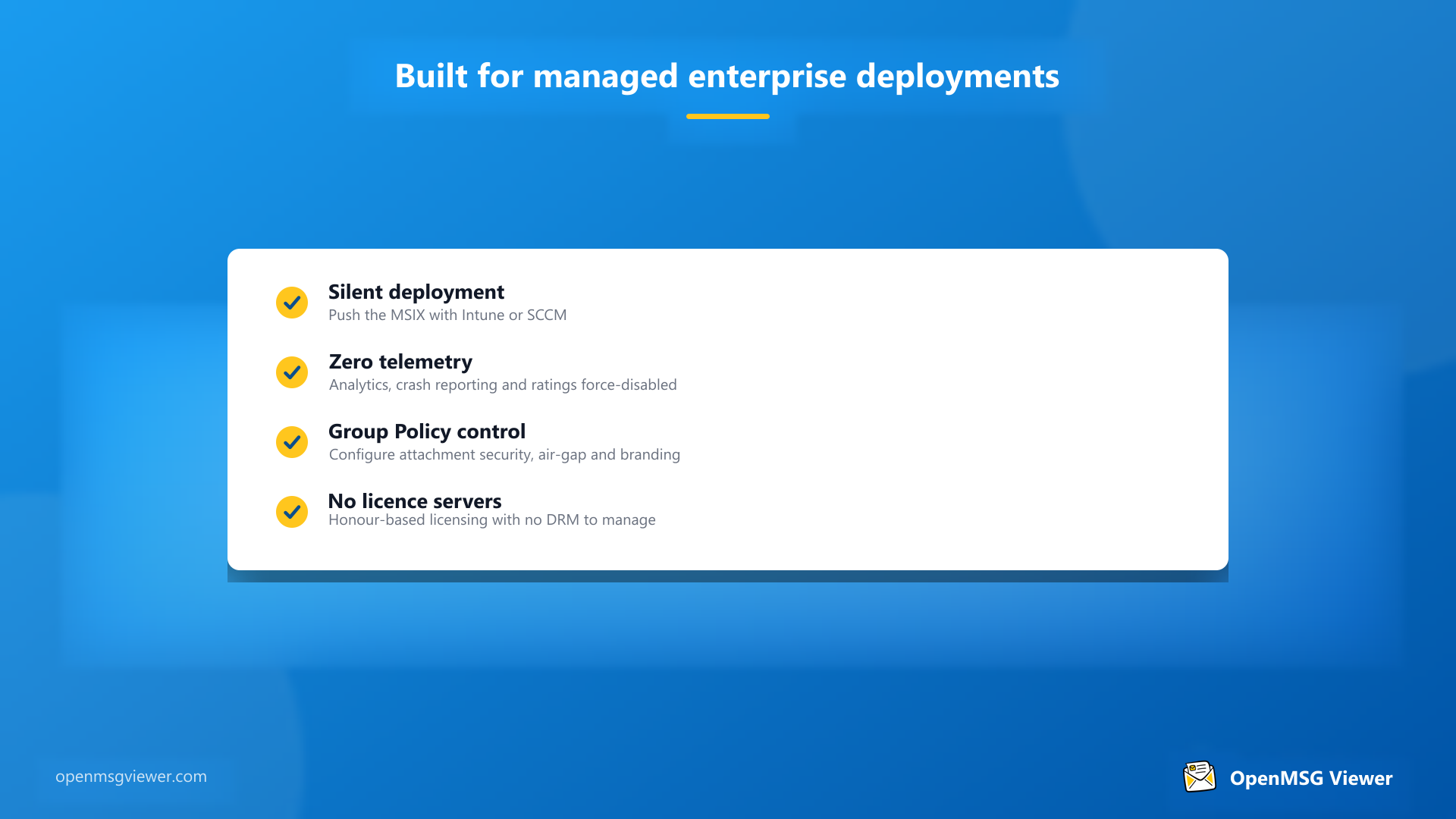
The consumer build sends pseudonymous usage analytics and crash reports. The Enterprise build sends none — telemetry, crash reporting, and in-app prompts are permanently disabled, so an enterprise deployment processes no end-user personal data through the vendor.
7. Policy-controlled by IT
Attachment rules, file size limits, theme, printing, and audit logging are all centrally configurable through Group Policy or the registry, so the deployment matches your existing standards.
Deployment guide for IT administrators
Rolling OpenMSG out across a session host farm takes minutes.
Step 1: Deploy the Enterprise MSIX
Use the Enterprise build for managed environments — it is distributed as an MSIX package for Intune, SCCM, or direct deployment, not through the Microsoft Store.
- Put the session host into Install Mode from an elevated command prompt:
change user /install
- Deploy the OpenMSG Enterprise MSIX through your normal pipeline (Intune or SCCM).
- Return to Execute Mode:
change user /execute
Step 2: Set policy and the file association
Configure behaviour in HKLM\SOFTWARE\Policies\OpenMSG (Group Policy takes precedence over HKLM\SOFTWARE\OpenMSG). For example, to lock the theme and hide the toggle:
$path = "HKLM:\SOFTWARE\Policies\OpenMSG"
New-Item -Path $path -Force | Out-Null
Set-ItemProperty -Path $path -Name "ForceTheme"     -Value 2 -Type DWord
Set-ItemProperty -Path $path -Name "HideThemeToggle" -Value 1 -Type DWord
Useful values for review-focused deployments include BlockUnsafeAttachments, DisableAttachmentSave, MaxFileSizeMb, and DisableEventLog for audit control. Then assign the .msg association to OpenMSG through a default-apps XML file in Group Policy, or by right-clicking any .msg file and choosing Open with → OpenMSG → Always.
Step 3: Validate
Sign in as a test user and double-click a sample .msg file. It should open instantly with full HTML rendering and a complete attachment list. Optionally, register the OpenMSG event source once per host to capture the audit trail:
New-EventLog -LogName Application -Source "OpenMSG"Licensing without servers or DRM
Deploying a viewer should not mean standing up infrastructure to manage it. OpenMSG licensing is honor-based — there is no concurrent licence server, no DRM key store, and nothing to monitor. Organisations are licensed up to the user count they purchase, which keeps Intune and AVD rollouts simple. Plans start at $450 per year for up to 50 users, with options up to an unlimited site licence. See the pricing page for details.
When you still need Outlook
To be clear, OpenMSG is not a replacement for Outlook as an email client. If your session host users need to:
- Send and receive email from a live mailbox,
- Manage calendars, contacts, and tasks, or
- Compose new messages,
…then Outlook or Outlook on the web remains the right tool.
But for the many workflows where the requirement is simply to open and read MSG files — helpdesk teams triaging forwarded email, legal teams processing review archives, finance teams auditing correspondence — OpenMSG is dramatically more efficient.
The bottom line
Installing Outlook on a Remote Desktop Session Host just to read MSG files is like hiring a freight truck to deliver a letter. It works, but the cost in storage, licensing, sign-in performance, and administrative complexity is wildly disproportionate to the task.
OpenMSG gives session host users the ability to open any MSG file instantly — with zero per-user overhead, zero profile configuration, and no per-user licensing. For IT teams managing multi-session environments, that is the obvious choice.